Dota 2 Best Settings for Low-End PC: Max FPS in 2026
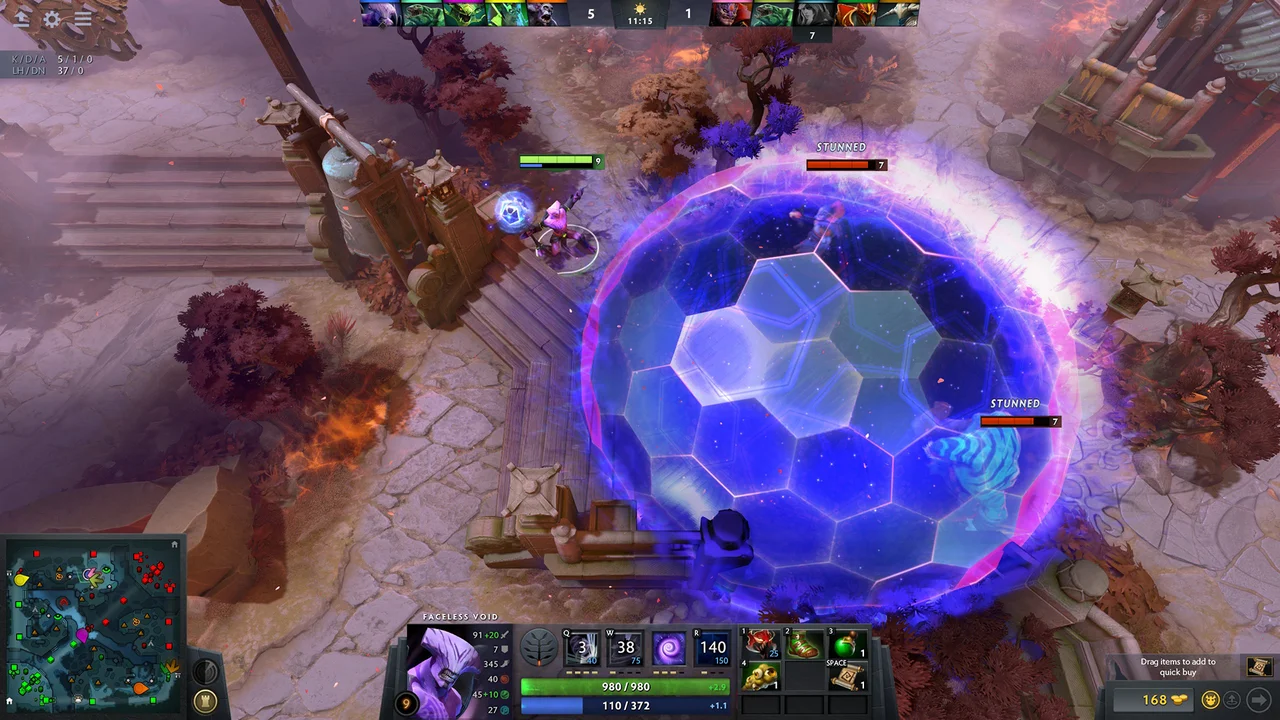
Dota 2 is free, it is still one of the most-played games on Steam, and it runs on Source 2 — so it should be an easy game for a low-end PC. The catch is that Valve ships it tuned for safe rather than fast: out of the box you are capped at 120 FPS, expensive effects are switched on, and the rendering API is left on auto. In a quiet lane none of that matters, but in a five-hero teamfight it is the difference between a stable 60 FPS and a slideshow. This guide gives you the exact settings for a low-end PC, in order of impact, and the system requirements are the official ones from Dota 2's Steam page, verified on November 26, 2026. The same approach works for other shooters too — our CS2 best settings for low-end PC and Apex Legends best settings for low-end PC guides use the same method.
Quick summary
- Dota 2 is free and officially needs just a dual-core 2.8GHz CPU, 4GB of RAM and a DirectX 11 graphics card — but the default settings waste frames.
- Remove the 120 FPS cap first with `+fps_max 0` in your launch options — it is the single most common reason players never see higher frame rates.
- Effects Quality on Low is the biggest win — community testing puts it at 30+ FPS in five-hero teamfights, and the visual difference is close to invisible during fast play.
- Shadows Low or Off, Anti-Aliasing Off, Ambient Occlusion Off — three expensive settings that barely help you win a fight.
- Test Vulkan against DirectX 11 — Vulkan is worth 10-15% on many systems, but DX11 is more stable on older NVIDIA hardware and laptops.
- Measure everything with `cl_showfps 1` — change one setting at a time and keep only the changes that actually raise your frame rate.
Your PC: what Dota 2 actually needs
Dota 2's official Steam requirements are honest about how light the game is — and how old a PC can still run it:
| Minimum | |
|---|---|
| OS | Windows 7 or newer |
| CPU | Dual core from Intel or AMD at 2.8 GHz |
| RAM | 4 GB |
| Graphics | NVIDIA GeForce 8600/9600GT or ATI/AMD Radeon HD2600/3600 |
| DirectX | Version 11 |
| Storage | 60 GB available space |
| Network | Broadband Internet connection |
Valve lists no recommended spec, which tells you the game scales well — the settings below are about removing the bottlenecks Valve leaves on by default, not about meeting a high bar. Dota 2 is also in our best FPS games for low-end PC and best multiplayer games for low-end PC lists if you want more games that run on the same hardware.
The best Dota 2 settings for low-end PC
Open Settings, then Video, and tick Use advanced settings so the full list appears. Start from these values, then test in a real match — the training lobby does not stress your PC the way a teamfight does.
| Setting | Recommended value | Why |
|---|---|---|
| Display Mode | Exclusive Fullscreen | Lowest input lag and the most stable frame pacing |
| Resolution | Your monitor's native resolution (e.g. 1920x1080) | Lower resolutions blur the map; drop only if nothing else works |
| Rendering API | DirectX 11 first, then test Vulkan | DX11 is the safest default; Vulkan is 10-15% faster on many systems |
| Texture Quality | High if your VRAM allows, Medium on older PCs | Mostly a VRAM issue — keep it higher if you do not stutter |
| Effects Quality | Low | The single biggest teamfight cost; leave it Low even on strong hardware |
| Shadow Quality | Low or Off | One of the heaviest GPU loads, and shadows rarely help gameplay |
| Anti-Aliasing | Off | Roughly 10% of your frames for edges you barely see in Dota's art style |
| Ambient Occlusion | Off | A fast FPS gain on most systems for a subtle shading effect |
| High Quality Water | Off | Cosmetic only |
| World Lighting | Off | Large GPU cost for a cosmetic gain |
| Additive Light Pass | Off | Removes extra lighting passes and reflections |
| Animate Portrait | Off | Cuts extra UI animation overhead |
| Game Screen Render Quality | 100% to start | Your emergency lever — drop to 80% only if you are still GPU-limited |
| V-Sync | Off | Removes tearing at the cost of input lag — not worth it in Dota |
| Maximum Frames Per Second | Your monitor's refresh rate, or slightly above | A stable cap beats an uncapped frame rate that jumps around |
| NVIDIA Reflex Low Latency | Enabled, if your card supports it | Cuts input lag in fights |
Launch options that actually help
Right-click Dota 2 in Steam, choose Properties, then General, then Launch Options, and paste this:
```
-novid -nojoy -novr -map dota +fps_max 0
```
What each one does: `-novid` skips the intro video, `-nojoy` disables joystick support for a small memory saving, `-novr` skips VR initialisation, `-map dota` preloads the map at launch so your first match does not stutter, and `+fps_max 0` removes Dota 2's default 120 FPS cap. If you would rather cap your frame rate, set `+fps_max` slightly above your monitor's refresh rate — 165 on a 144Hz panel — instead of letting the game render hundreds of frames your screen cannot show. Add an API flag such as `-vulkan` or `-dx11` only after you have tested which one runs better on your hardware.
Two things to avoid: never use `-32bit` — it locks Dota 2 to 32-bit mode, caps addressable RAM at 4GB and causes crashes and stutters. And ignore any guide telling you to force DirectX 9 or use `-nod3d9ex` — that advice is left over from the Source 1 era, Dota 2 has not run on DX9 for years and those flags do nothing now.
Vulkan or DirectX 11?
This is the one setting worth testing properly, because the right answer depends on your hardware. Vulkan generally performs better on AMD cards and on modern CPUs, and often improves frame pacing — fewer stutters even when the average FPS looks similar. DirectX 11 is more stable on older NVIDIA hardware and on many laptop configurations. Set the API, play two or three full matches, check your frame rate with `cl_showfps 1` (enable the console in Settings, then Hotkeys, then Advanced), and keep whichever one holds a steadier frame rate in teamfights. Do not judge it in the fountain — judge it when five heroes are casting at once.
Windows and dashboard tweaks
A few small changes outside the match itself: set the Dashboard Maximum Frames Per Second to 60 and turn High Quality Dashboard off, so the menu does not heat up your PC between games. Keep your graphics drivers updated, close the browser before you queue, and if you want the full Windows-side checklist — Game Mode, GPU scheduling, power plan and background apps — our how to increase FPS in any game guide covers it step by step.
Frequently asked questions
Can Dota 2 run on a low-end PC?
Yes. The official minimum is a dual-core 2.8GHz CPU, 4GB of RAM and a DirectX 11 graphics card — hardware from over a decade ago. With the settings in this guide, most low-end PCs hold a stable 60 FPS.
What is the single biggest FPS setting in Dota 2?
Effects Quality on Low. Community testing puts it at 30+ FPS in five-hero teamfights, and the visual difference is close to invisible during fast play. Turn it down first and leave it down.
Should I use Vulkan or DirectX 11 in Dota 2?
Test both. Vulkan is 10-15% faster on many systems and better on AMD cards and modern CPUs; DirectX 11 is more stable on older NVIDIA hardware and laptops. Keep whichever holds a steadier frame rate in teamfights.
What are the best Dota 2 launch options for low-end PC?
`-novid -nojoy -novr -map dota +fps_max 0`. The `+fps_max 0` part removes the default 120 FPS cap. Avoid `-32bit` and any DirectX 9 flags — they do nothing or make things worse in 2026.
Why does my FPS drop only in teamfights?
Teamfights are when Effects Quality, shadows and spell particles all hit at once. If your frames are fine in lane but collapse in fights, lower Effects Quality and Shadow Quality first, then drop Game Screen Render Quality to 80% as a last resort.
Related articles
 BGMI Best Settings for Low-End Phones: Ho…
 Best Indie Games for Low-End PC: 10 Small…
 PUBG Best Settings for Low-End PC: Max FP…
 GTA 6 Workouts: How to Raise Strength and…
Steam — Dota 2 system requirements (verified via Steam API, November 26, 2026)
MMR Boost — How to Boost FPS in Dota 2: Best Settings for 2026
SavyGames — Dota 2 Best Settings for Max FPS (2026 Guide)
TeamSmurf — Dota 2 Launch Options and FPS Settings 2026: Fix Stutter on Low-End PCs
Hone.gg — Best Dota 2 Settings for FPS – Maximize Performance
Hero image: Valve.