Delta Force Best Settings for Low-End PC: Max FPS Without Losing the Fight
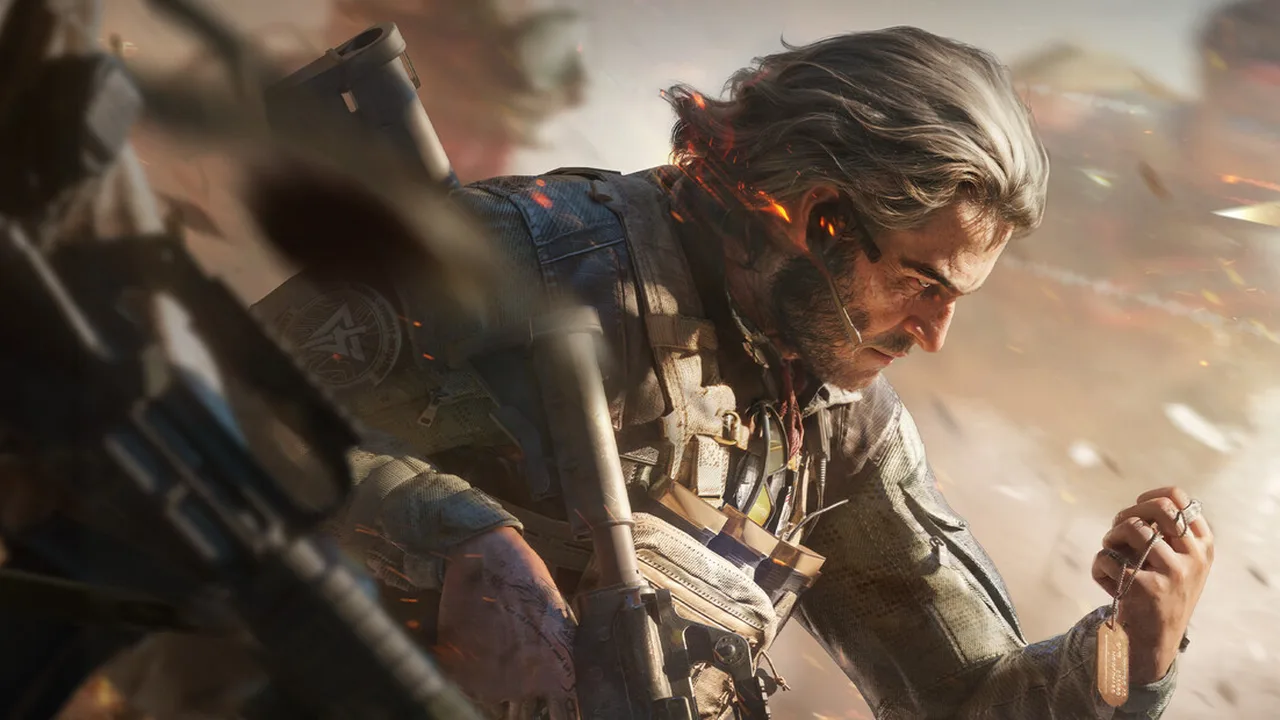
Delta Force is free, it is one of the biggest shooters on Steam right now, and it is surprisingly kind to weak hardware — as long as you change the right settings. The game launched with a low minimum spec, but "runs" and "runs well enough to hold an angle in a firefight" are two different things. We checked the official system requirements on Steam, compared the best settings guides from competitive players, and tested what actually moves the frame rate, so you can get the most out of a low-end PC without turning the game into a blurry mess.
The single biggest win is turning ray tracing off — one benchmark gained 30-50% FPS from that change alone. The second is letting DLSS, FSR or XeSS do the heavy lifting instead of dropping your resolution by hand. And if you are here because of the Metal Gear Solid crossover that went live today, these settings will keep you competitive while you chase the free Naked Snake rewards.
Quick summary
- Delta Force is free on Steam, and its official minimum is just 8GB of RAM and a GTX 660-class graphics card.
- Turn ray tracing off first — it is the single biggest FPS gain in the game, worth 30-50% in one benchmark.
- Use DLSS, FSR or XeSS on Quality at 1080p and 1440p instead of dropping your resolution — upscaling recovers more frames than lowering the resolution slider.
- Keep Rendering Scale at 100% and let the upscaler do the work; dropping it below 100 makes enemies harder to spot at distance.
- Do not edit config files — modifying files like Engine.ini is prohibited and can get you penalised.
- 8GB of RAM is the official minimum, and it works, but 16GB is the realistic floor for stable competitive play.
What your PC needs to run Delta Force
Delta Force's official Steam requirements are honest about the floor, but the recommended spec is the one that actually delivers a stable competitive frame rate. Here is the full picture:
| Spec | Minimum | Recommended |
|---|---|---|
| CPU | Intel Core i3-4150 / AMD FX-6300 | Intel Core i5-6500 / Ryzen 5 1500X |
| GPU | GTX 660 / HD 7870 / Arc A380 | GTX 1060 5GB / RX 5500 XT / Arc A580 |
| RAM | 8GB | 16GB |
| Storage | 88GB | 88GB |
The game is free, so the only cost is the 88GB download — and the Season Aurora update, which went live this week, adds optional Unreal Engine 5 features on the Zenith Port map, so your numbers may shift slightly from the guides below. If your PC meets the minimum but not the recommended spec, the settings in this guide are built for you.
The best Delta Force settings for max FPS
Start from the Low preset, then change the settings below one by one. The order matters — the settings at the top of the list are the ones that buy you the most frames.
| Setting | Best option | Why |
|---|---|---|
| Display mode | Fullscreen | Lowest latency; borderless costs little on Windows 11 but fullscreen is safest |
| Resolution | Native (1080p) | Let the upscaler do the work, not the resolution slider |
| V-Sync | Off | Adds input lag and caps your frames |
| Frame rate cap | What you can hold | A stable 60 beats a jumping 90 — cap it to what your PC holds in a full fight |
| NVIDIA Reflex | On | Near-zero FPS cost and cuts input lag; use Enhanced if your CPU is the weak part |
| Ray tracing | Off | The biggest single gain — 30-50% FPS in one benchmark |
| Super Resolution | DLSS / FSR / XeSS Quality | The biggest lever after ray tracing; use Performance at 4K |
| DLSS Frame Generation | Off | More frames, more input lag — off in Operations and competitive Warfare |
| Rendering Scale | 100% | Below 100 makes distant enemies a smear; the upscaler handles the rest |
| Shadow Quality | Low | One of the highest-value trades in the game |
| Shadow Map | Low | Costs up to 7% of your frames for shadows you will not notice mid-fight |
| Lumen (Global Illumination) | Low | Replaces the old Global Illumination setting; Low saves 3-5% |
| Volumetric Fog | Low | Costs 4-5% on some maps for fog you fight through anyway |
| Ambient Occlusion | Off | Costs little up to High, then 10%+ — off is the safe pick on weak hardware |
| Reflections | Low | A visible cost for a reflection you will never look at in a gunfight |
| Scene Details | Low | Up to 9% of your frames for background clutter |
| Scene View Distance | High | Do not cut this — it decides whether a distant player renders as a model or a smear |
| Texture Filtering | High | Almost free on modern cards, and it keeps the game readable |
| Particles | Low | About 4% of your frames for explosions you will see once |
| Shaders | Low | 2-4% for effects that do not help you win fights |
| Post-Processing | Low | Cheap frames for a filter you do not need |
| Weapon Motion Blur | Off | Actively fights your ability to track a moving target |
| Depth of Field | Off | Blurs what you need to read clearly |
| Scope Zoom Magnification Effect | Off | Same problem as depth of field, only when you are aiming |
| Field of View | 105 | The sweet spot — wide enough to see flanks, cheap enough to keep your frames |
If your frames still fall short after all of that, drop Rendering Scale to 66% — it is a known sweet spot — and switch the upscaler from Quality to Balanced or Performance. But try the table above first: most low-end PCs will not need to touch the resolution at all.
Step by step: set it up in five minutes
### 1. Start from the Low preset, then go custom
Open Settings, set the graphics preset to Low, then switch it to Custom. That gives you a clean baseline with every setting exposed, and it stops the game from quietly resetting your changes when you restart.
### 2. Turn off ray tracing and V-Sync
These are the two biggest single changes. Ray tracing is the most expensive setting in Delta Force — turning it off gained 30-50% FPS in independent testing. V-Sync adds input lag and caps your frame rate, so it goes off too.
### 3. Turn on your upscaler and set it to Quality
Pick DLSS on Nvidia, FSR on AMD, or XeSS on Intel, and set it to Quality. This is the setting that does the most work for you: it renders the game at a lower internal resolution and rebuilds a sharp image, which is worth more frames than dropping the resolution slider by hand. Leave Rendering Scale at 100% and let the upscaler handle it.
### 4. Turn on Reflex and set your frame cap
NVIDIA Reflex goes On — it cuts input lag for almost no FPS cost. Then set your in-match frame cap to a number your PC can actually hold in a full fight, not the highest number you see in a quiet menu. A stable 60 FPS beats a frame rate that jumps between 90 and 45.
### 5. Fix the visibility settings last
Weapon Motion Blur off, Depth of Field off, Scope Zoom Magnification Effect off, Field of View 105, Scene View Distance High. These cost almost nothing and decide whether you can actually see the enemy who is shooting at you. Texture Filtering goes to High for the same reason — it is nearly free and keeps the game readable at distance.
The honest 8GB RAM plan
Delta Force officially needs 8GB of RAM, and it will run on 8GB — but you need to be honest about what that means. With 8GB, close everything else before you play: your browser, Discord's hardware acceleration, and any background recording. Set your page file to system-managed if you have not already, and expect occasional stutters on the biggest Warfare maps, where 64 players and vehicles push memory hardest. Operations mode is lighter and runs better on 8GB than Warfare.
If you can add another 8GB stick, do it before you buy anything else — it is the single best upgrade for this game, and it is also what the recommended spec asks for. If you cannot, the settings above will still get you a playable game. And if the whole PC is struggling, our guide to increasing FPS in any game on Windows has the system-wide tweaks — Game Mode, driver updates, background apps — that help every title, not just this one.
What not to do
Do not edit Delta Force's configuration files. Modifying files such as Engine.ini is prohibited, and there is a penalty notice covering .ini edits — you can be punished for it. Everything in this guide is done through the in-game settings menu, and that is enough. Also do not turn on DLSS Frame Generation in Operations or competitive Warfare: it adds frames, but it also adds input lag, and in a shooter that trade is never worth it.
If you want more free shooters that run on the same hardware, our best FPS games for low-end PC guide has the full list, and the Metal Gear Solid crossover running until December 31 is the best reason to jump in right now — the free Legendary SR-3M skin alone is worth a few matches.
Frequently asked questions
What are the best Delta Force settings for low-end PC?
Fullscreen, V-Sync off, ray tracing off, NVIDIA Reflex on, DLSS/FSR/XeSS on Quality, shadows and Lumen on Low, weapon motion blur and depth of field off, Rendering Scale at 100%, and Field of View at 105. Ray tracing off alone is worth 30-50% FPS.
Can I play Delta Force on 8GB of RAM?
Yes — 8GB is the official minimum, and the game runs on it. Close your browser and background apps before playing, expect occasional stutters on big Warfare maps, and know that 16GB is the recommended spec for stable competitive play.
Should I use DLSS, FSR or XeSS in Delta Force?
Use whichever matches your graphics card: DLSS on Nvidia, FSR on AMD, XeSS on Intel. Set it to Quality at 1080p and 1440p, or Performance at 4K. Upscaling recovers more frames than dropping your resolution by hand.
Why is Delta Force stuttering on my low-end PC?
The usual causes are ray tracing left on, a frame cap set higher than your PC can hold, or 8GB of RAM filling up on big Warfare maps. Turn ray tracing off, cap your frames to what you can hold in a full fight, close background apps, and try Operations mode, which is lighter than Warfare.
Can I edit Delta Force config files for more FPS?
No — do not. Modifying configuration files such as Engine.ini is prohibited, and there is a penalty notice covering .ini edits. Use the in-game settings in this guide instead.
Related articles
 Best Games Like Minecraft for Low-End PC:…
 Best Cyberpunk Games for Low-End PC: 10 N…
 Genshin Impact Best Settings for Low-End…
 Marvel Rivals Best Settings for Low-End P…