Marvel Rivals Best Settings for Low-End PC: Max FPS Without Losing the Fight
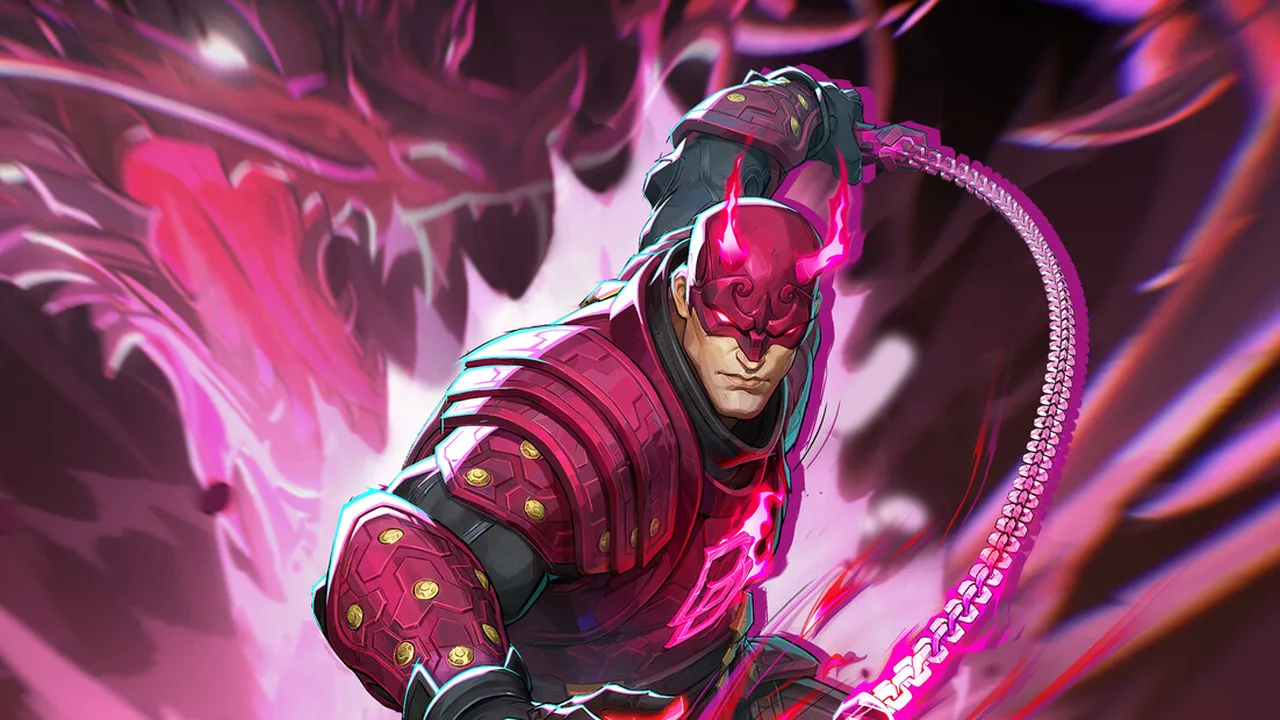
Marvel Rivals is free, it is one of the biggest hero shooters on PC right now, and it runs on Unreal Engine 5 — which means it can punish a weak PC in exactly the wrong moments: a 6v6 team fight full of ultimates is when your frame rate matters most, and it is also when the game asks the most of your hardware. The good news is that one setting decides most of your frame rate, and once you fix that, the rest is a quick pass through the menu. This guide gives you the exact settings to use, the official system requirements, and an honest plan for playing on 8GB of RAM when the game officially asks for 16GB.
Quick summary
- Marvel Rivals is free on Steam, needs 70GB of storage, and officially asks for 16GB of RAM and a GTX 1060 or RX 580.
- Global Illumination is the single biggest FPS lever: switch it to SSGI Low and never use Lumen — Lumen can cost 30–60 FPS on a mid-range card.
- Use DLSS, FSR or XeSS on Quality mode — match the upscaler to your GPU. It is the biggest free frame-rate gain in the game.
- Turn Frame Generation off for competitive play: it adds 10–20ms of input lag and makes your aim feel worse.
- Keep Shadows on Low, not Off — enemy shadows reveal movement around corners, so they are worth a few frames.
- On 8GB of RAM, the game will run, but you need to be disciplined: close background apps, keep textures on Medium, and use Balanced upscaling in big fights.
Can your PC run Marvel Rivals?
These are the official requirements from the game's Steam page, verified on November 27, 2026. The honest headline: the minimum and recommended specs both list 16GB of RAM, which is more than most low-end PCs have. That does not mean the game is unplayable on 8GB — it means you should not expect the minimum spec experience, and you should follow the 8GB plan below.
| Minimum | Recommended | |
|---|---|---|
| OS | Windows 10 64-bit (1909 or newer) | Windows 10 64-bit (1909 or newer) |
| CPU | Intel Core i5-6600K / AMD Ryzen 5 1600X | Intel Core i5-10400 / AMD Ryzen 5 5600X |
| RAM | 16GB | 16GB |
| GPU | NVIDIA GTX 1060 / AMD RX 580 / Intel Arc A380 | NVIDIA RTX 2060 Super / AMD RX 5700-XT / Intel Arc A750 |
| DirectX | Version 12 | Version 12 |
| Storage | 70GB (SSD recommended) | 70GB (SSD recommended) |
Two things matter more than the rest. First, the game needs DirectX 12 and a 64-bit Windows 10 — if you are still on Windows 10 32-bit, it will not run at all. Second, install it on an SSD. Marvel Rivals streams a lot of data during matches, and a hard drive will give you stutters and slow loads that no settings change can fix. If you only have a hard drive, this is the one upgrade that matters more than any setting in this guide.
If you want to see the game at its most competitive, DreamHack Stockholm 2026 is running the $1 million Marvel Rivals Ignite playoffs this weekend — the pros play on Low settings too, for exactly the reasons in this guide.
The one setting that matters most: Global Illumination
Marvel Rivals runs on Unreal Engine 5, and one UE5 feature decides more of your frame rate than everything else combined: Lumen, the engine's real-time global illumination. On a mid-range card, Lumen can cost 30–60 FPS — and in a fast hero shooter, you will never notice the prettier lighting while you are trying to track a Spider-Man swinging across the map.
Set Global Illumination to SSGI Low Quality and never use Lumen. SSGI keeps the lighting readable at a fraction of the cost, and it is the single change that turns an unplayable frame rate into a playable one on a low-end PC. The same logic applies to Reflection Quality: use Screen Space Reflections (or turn reflections off entirely), never Lumen reflections — they stack the same cost again for zero competitive value.
Display settings for low-end PC
| Setting | Value | Why |
|---|---|---|
| Display Mode | Fullscreen | The most direct control of frame pacing and the lowest latency |
| Resolution | Native display resolution | Keeps the interface sharp; use upscaling rather than lowering resolution first |
| Anti-Aliasing / Super Resolution Type | DLSS (NVIDIA RTX), FSR (AMD), XeSS (Intel Arc) | Match the upscaler to your GPU — the biggest free frame gain in the game |
| Super Resolution Mode | Quality | Drop to Balanced only if Quality misses your FPS target |
| Super Resolution Sharpening | 70–80 | Claws back the slight softness upscaling adds |
| Frame Generation | Off | Adds 10–20ms of input lag; fake smoothness that hurts your aim |
| Low Latency Mode | NVIDIA Reflex On (or On + Boost) / AMD Anti-Lag | Cuts up to 30ms of input latency for free |
| Limit FPS | A few frames below your refresh rate | Cap at 141 FPS on a 144Hz display, or 57–59 on a 60Hz display, for steadier frame delivery |
| Show FPS | On | Keep it on while tuning so you can see what each change buys you |
| V-Sync | Off | Avoids the extra synchronisation delay; the frame cap handles tearing |
| Brightness | Your preference | No performance impact |
If your GPU is too old for DLSS, FSR or XeSS, use TSR — Unreal Engine 5's built-in upscaler — or skip upscaling and lean harder on the graphics settings below. And if you do not want to tune anything by hand, the game has an "Optimise" button that analyses your hardware and picks a preset (Low, Medium, High or Ultra). It is a decent starting point, but the manual settings in this guide will beat it on a low-end PC, because the automatic preset does not know you would rather have 60 FPS than pretty reflections.
Graphics settings for low-end PC
| Setting | Value | Why |
|---|---|---|
| Global Illumination | SSGI Low Quality | The biggest FPS lever in the game — never Lumen |
| Reflection Quality | Screen Space or Off | Expensive reflections that rarely help you spot enemies |
| Shadow Detail | Low | The one setting worth frames: keeps enemy shadows visible around corners |
| Texture Quality | Medium (High only with 8GB+ VRAM) | Textures mainly eat VRAM, not FPS — on 6GB or less, lower it if you see stutter |
| Model Detail | Low to Medium | Keeps heroes readable without spending on distant geometry |
| Effects Quality | Low | Fewer particles in team fights means steadier frames |
| Post-Processing | Low | Cuts visual clutter that hides enemies |
| Foliage Quality | Low | Decorative plants cost frames in outdoor maps |
The logic here is deliberate: lighting, shadows and effects are where UE5 spends its budget, while geometry and textures are comparatively cheap. That is why Shadows stay on Low instead of Off — an enemy's shadow rounding a corner is free information, and it is worth more than the handful of frames turning shadows off would buy. Textures are the exception to the "everything Low" rule: on a card with 6GB of VRAM or more, Medium textures look noticeably better and cost almost nothing, so keep them there unless you see stuttering.
The 8GB RAM survival plan
The official minimum is 16GB, and the game will warn you about it. Here is how to play on 8GB anyway:
- Close everything before you launch. Chrome with a few tabs can eat 2–3GB on its own. Close the browser, close Discord's hardware acceleration if you can live without it, and kill background updaters.
- Use Balanced upscaling instead of Quality. Dropping from Quality to Balanced upscaling lowers the internal render resolution, which takes pressure off both the GPU and the memory.
- Keep Textures on Medium, never High. High textures on 8GB of system RAM is the fastest route to stuttering in this game.
- Restart the game between long sessions. UE5 games can slowly grow their memory use over hours of play; a fresh launch before a ranked session is free performance.
- Play on an SSD. This one keeps coming up because it matters: on a hard drive, the game hitches when it loads assets mid-match, and that feels exactly like a frame-rate problem even though your GPU is fine.
Be honest with yourself about expectations: on 8GB of RAM with a GTX 1060-level card, you should aim for a stable 60 FPS at 1080p with these settings, not 144. If you are getting big dips in team fights, drop the Super Resolution mode to Balanced first, then Effects to Low — those two changes fix most stuttering without touching anything you will miss.
For more Windows-level tweaks that help every game, not just this one, see our guide to increasing FPS in any game. And if you want a hero shooter alternative that is lighter still, our best FPS games for low-end PC list has 10 shooters that run on weaker hardware — including three that are free.
Frequently asked questions
Is Marvel Rivals free?
Yes. Marvel Rivals is free-to-play on PC (Steam and Epic), PlayStation 5 and Xbox Series X|S. You pay nothing for the game itself — only for cosmetic items like skins and the battle pass. It needs about 70GB of storage.
Can I play Marvel Rivals on 8GB of RAM?
Yes, but not at the official minimum spec. The game asks for 16GB, so on 8GB you need to close background apps, keep textures on Medium, use Balanced upscaling, and install the game on an SSD. Expect a stable 60 FPS at 1080p on a GTX 1060-level card, with dips in big team fights.
What is the best upscaler for Marvel Rivals?
DLSS on NVIDIA RTX cards, FSR on AMD cards, and XeSS on Intel Arc cards — all on Quality mode to start, dropping to Balanced if you need more frames. On older cards with no upscaler support, use TSR, Unreal Engine 5's built-in option.
Should I turn on Frame Generation?
Not for competitive play. DLSS 3 and FSR 3 frame generation raise the displayed FPS by inventing frames, but add 10–20ms of input lag, which directly hurts flick aim and hit registration. Keep it off in ranked.
Why is Marvel Rivals stuttering on my PC?
The usual causes are Lumen global illumination (switch to SSGI Low), a hard drive instead of an SSD, or running out of RAM with background apps open. Fix those three first — they cause more stuttering than any other settings combined.
Related articles
 Best Tycoon Games for Low-End PC: 10 Mana…
 Best Soulslike Games for Low-End PC: 10 B…
 Best Rhythm Games for Low-End PC: 10 Game…
 Battlefield 6 Best Settings for Low-End P…