Overwatch 2 Best Settings for Low-End PC: Max FPS in 2026
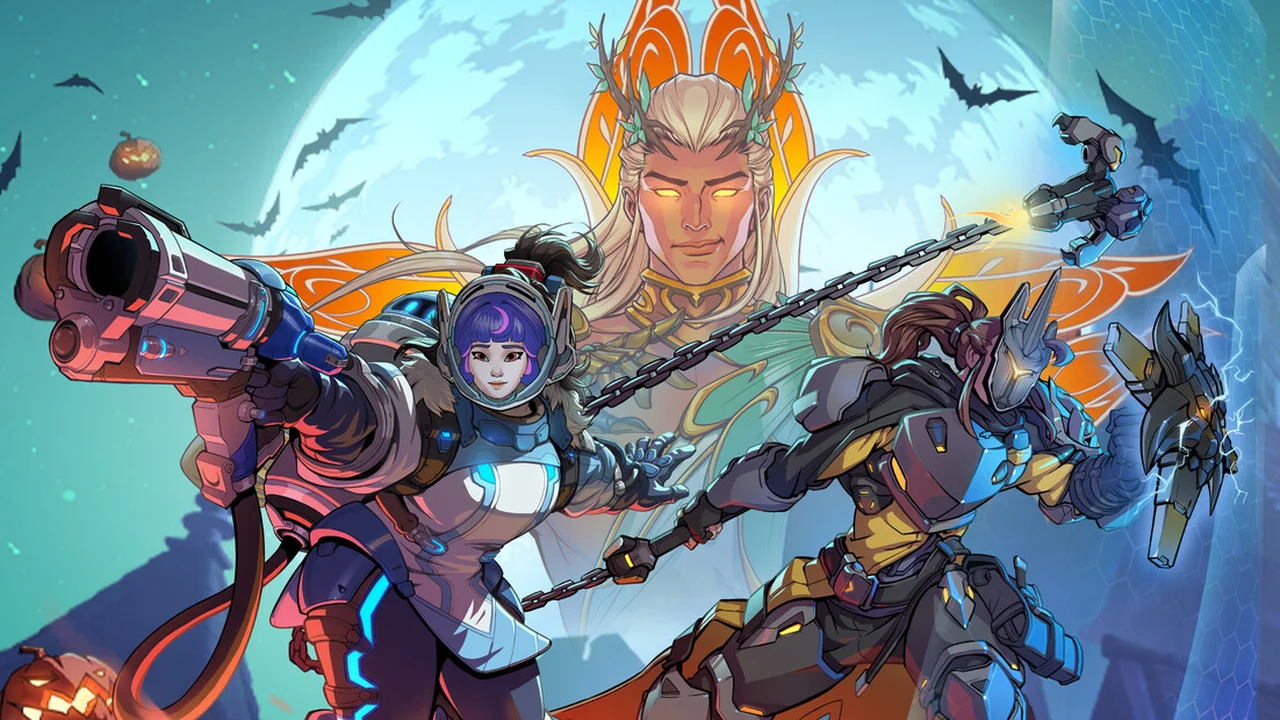
Overwatch 2 is free, it is one of the most-played shooters on PC, and it is surprisingly kind to weak hardware — Blizzard's minimum spec is a 6GB RAM PC with a graphics card from 2012. The catch is that Overwatch 2 is a fast hero shooter: you need a steady frame rate to track enemies, land shots and react to ultimates, and a stutter at the wrong moment will lose you the team fight. The good news is that the game's settings menu gives you exactly the levers you need, and most of them cost you almost nothing visually.
This guide gives you the best settings for a low-end PC, verified against Overwatch 2's official system requirements on Steam on November 26, 2026. Follow the table, and a PC that barely meets the minimum spec should hold a stable 60 FPS — and if your hardware is a little better, the same settings will get you closer to 120.
Quick summary
- Overwatch 2 is free on Steam, and its minimum spec is genuinely low: an Intel Core i3, 6GB of RAM and a GeForce GTX 600 series card.
- Recommended spec is an i7 or Ryzen 5 with 8GB of RAM and a GTX 1060, GTX 1650, RX 6400 or Intel Arc A770.
- The three biggest FPS wins are Render Scale, Shadow Detail and Effects Detail — drop those first and you will gain the most frames for the least visual loss.
- Turn on Reduce Buffering and NVIDIA Reflex (if you have an NVIDIA card) — they cut input lag, which matters more than raw FPS in a hero shooter.
- Use AMD FSR 2.2 or NVIDIA DLSS on Performance if your GPU supports it — it renders at a lower resolution and upscales, which is the single easiest way to gain 20-30 FPS.
- Aim for a stable 60 FPS minimum. In Overwatch 2, a steady 60 beats a jumping 80-120 every time.
Overwatch 2 system requirements (Steam, verified November 26, 2026)
| Minimum | Recommended | |
|---|---|---|
| OS | Windows 10 64-bit | Windows 10 64-bit |
| Processor | Intel Core i3 or AMD Phenom X3 8650 | Intel Core i7 or AMD Ryzen 5 |
| Memory | 6GB RAM | 8GB RAM |
| Graphics | NVIDIA GeForce GTX 600 series or AMD Radeon HD 7000 series | NVIDIA GeForce GTX 1060 / GTX 1650, AMD R9 380 / RX 6400 or Intel Arc A770 |
| DirectX | Version 11 | Version 11 |
| Storage | 50GB available space | 50GB available space |
One honest warning: the minimum spec is 6GB of RAM. If your PC has only 4GB, Overwatch 2 may launch, but it will stutter badly when team fights get busy — the game loads a lot of hero data into memory. A RAM upgrade to 8GB is the single best upgrade you can make for this game, and it is usually the cheapest too.
Best Overwatch 2 settings for low-end PC
Open Options → Video and set these. Start with the table below, then use the explanations underneath to tune for your own PC.
| Setting | Best value (low-end) | Why |
|---|---|---|
| Display Mode | Fullscreen | Fastest mode, lowest input lag |
| Resolution | Your monitor's native resolution | Drop to 1600x900 or 1280x720 only if FPS is still low |
| Dynamic Render Scale | Off | You want manual control, not the game changing resolution mid-fight |
| Render Scale | 100% | Drop to 75% if you still cannot hold 60 FPS |
| Frame Rate Cap | Your monitor's refresh rate (60 or 120) | Uncapped makes your GPU run hot for no benefit |
| VSync | Off | Adds input lag — keep it off |
| Triple Buffering | Off | Only useful with VSync on, which you should not use |
| Reduce Buffering | On | Cuts input lag — one of the most important settings |
| NVIDIA Reflex | On + Boost (NVIDIA cards only) | Cuts input lag further; use On if your FPS is very low |
| Graphics Quality | Low (then customise below) | Start low, raise one setting at a time if you have FPS to spare |
| Texture Quality | Low | Textures cost VRAM, not FPS — but Low is safest on 2GB cards |
| Texture Filtering Quality | Low — 1x | Almost no visual difference in a fast game |
| Local Fog Detail | Low | Fog effects cost frames in maps like Nepal and Busan |
| Dynamic Reflections | Off | Reflections are expensive and you will never look at them mid-fight |
| Shadow Detail | Low | The single biggest FPS win after Render Scale |
| Model Detail | Low | Simpler hero models, same hitboxes — no gameplay downside |
| Effects Detail | Low | Fewer particles from explosions and abilities — big FPS win in team fights |
| Lighting Quality | Low | Cheaper lighting, barely noticeable in combat |
| Antialiasing | Off (or FXAA Low) | Off is fastest; FXAA Low if jagged edges bother you |
| Refraction | Off | Only affects a few hero effects |
| Screenshot Supersampling | 1.00x | Leave at 1x — higher values tank your FPS for screenshots |
| Ambient Occlusion | Off | Expensive shadows in corners you will never notice |
| Upsampling | AMD FSR 2.2 / NVIDIA DLSS (Performance) | The easiest 20-30 FPS you will ever gain |
| High Quality Upsampling | Off | Only for strong GPUs — keep it off |
What each setting actually costs you
Render Scale is your emergency lever. At 100% the game renders at your full resolution. Drop it to 75% and the game renders at three-quarters resolution and stretches the image back up — it looks slightly softer, but it is the fastest way to gain frames when nothing else works. Use it before dropping your monitor resolution, because it keeps your menus and HUD sharp.
Shadow Detail and Effects Detail are the two biggest wins. Shadows cost a lot in Overwatch 2's bright, open maps, and Effects Detail controls the particles from explosions, healing beams and ultimates — exactly the moments when your FPS drops hardest. Set both to Low and your frame rate in team fights will be far more stable.
Reduce Buffering and NVIDIA Reflex are about input lag, not FPS. They will not raise your frame rate, but they will make your mouse feel more responsive — your shots will land where you aim instead of a fraction of a second late. In a hero shooter, that matters as much as frames. Turn Reduce Buffering on always; if you have an NVIDIA card, set Reflex to On + Boost, or just On if your FPS is very low.
Upsampling (FSR or DLSS) is free performance. If your graphics card supports AMD FSR 2.2 or NVIDIA DLSS, turn it on and set it to Performance. The game renders at a lower resolution and upscales the image with AI — you gain 20-30 FPS and the image still looks good. On a low-end PC this is the closest thing to a magic setting that exists. If your card supports neither, use Render Scale 75% instead — it is the same idea, done manually.
What to do if you still cannot hold 60 FPS
1. Drop Render Scale to 75%, then 50% if needed. This is the biggest single lever and it always works.
2. Drop your resolution to 1600x900, then 1280x720. Lower resolution means fewer pixels to draw, and Overwatch 2 still plays fine at 720p.
3. Close everything else. Overwatch 2 plus Battle.net plus Chrome with ten tabs will choke a 6GB PC. Close your browser, Discord's hardware acceleration, and any recording software before you queue.
4. Turn on Windows Game Mode (Settings → Gaming → Game Mode) and set your Windows power plan to High Performance.
5. Update your graphics drivers. NVIDIA and AMD both release Overwatch 2 optimisations, and an old driver can cost you 10-15 FPS for no reason.
6. Check your temperatures. A laptop that is thermal-throttling will drop to half speed mid-match. Clean the vents, use a cooling stand, or cap your FPS at 60 so the hardware stops overheating.
Launch options: there are none worth using
Unlike CS2 or Apex Legends, Overwatch 2 has no useful launch options for performance — everything that matters is in the in-game Video menu. Do not waste time on launch-option guides or "FPS config" files from random websites: they either do nothing or change settings you can already change in the menu. The one exception is Battle.net itself — in the Battle.net launcher, go to Settings and turn off "Allow streaming" and hardware acceleration if you are not using them, so the launcher stops using your CPU and RAM while you play.
How to measure your FPS
Turn on the in-game FPS display (Options → Video → Display Performance Stats → Show Framerate, or press Ctrl+Shift+N in game) and watch it during a team fight, not in the spawn room. Your spawn-room FPS means nothing — what matters is the lowest number you see when six ultimates go off at once. If that number stays above 60, your settings are right. If it dips to 40, drop Render Scale one step and try again.
For more shooters that run on weak hardware, see our best FPS games for low-end PC guide, and for other competitive shooters, our Valorant best settings for low-end PC and CS2 best settings for low-end PC guides use the same approach.
Frequently asked questions
Can I run Overwatch 2 on 4GB of RAM?
Not well. The official minimum is 6GB of RAM, and with 4GB the game will stutter badly in team fights as it runs out of memory. Close every other app and set Texture Quality to Low, but the real fix is a RAM upgrade to 8GB — it is the cheapest upgrade that makes the biggest difference for this game.
Why is my FPS capped at 60 in Overwatch 2?
Check Options → Video → Frame Rate Cap. If it is set to 60, the game will never go above it — set it to your monitor's refresh rate (120 or 144 if your monitor supports it) or to a custom value. Also check that VSync is off, since VSync caps your FPS to your monitor's refresh rate.
Should I use FSR or DLSS in Overwatch 2?
Use whichever your graphics card supports: DLSS on NVIDIA RTX cards, FSR 2.2 on AMD and older NVIDIA cards. Set it to Performance for the biggest FPS gain. If your card supports neither, use Render Scale at 75% instead — it does the same job manually.
Does Overwatch 2 have a 60 FPS cap?
No. Overwatch 2 can run uncapped, but you should cap it at your monitor's refresh rate anyway — an uncapped frame rate makes your GPU run at 100% for no visible benefit, which causes heat, noise and stuttering on a low-end PC.
What FPS should I aim for in Overwatch 2?
60 FPS stable is the minimum for competitive play — below that, your aim and reactions suffer. If your monitor is 120Hz or 144Hz and your PC can hold it, 120 FPS feels noticeably smoother, but a rock-steady 60 is always better than a jumping 80-120.
Related articles
 Best Fighting Games for Low-End PC: 10 Fi…
 GTA 5 Best Settings for Low-End PC: Max F…
 Call of Duty: Black Ops 7 Best Settings f…
 BGMI Best Settings for Low-End Phones: Ho…
Steam — Overwatch 2 store page (price and system requirements, India)
Blizzard Entertainment — Overwatch 2 system requirements
Hero image: Blizzard Entertainment.