Free Fire Best Settings for Low-End Phones: Smooth Gameplay With No Lag
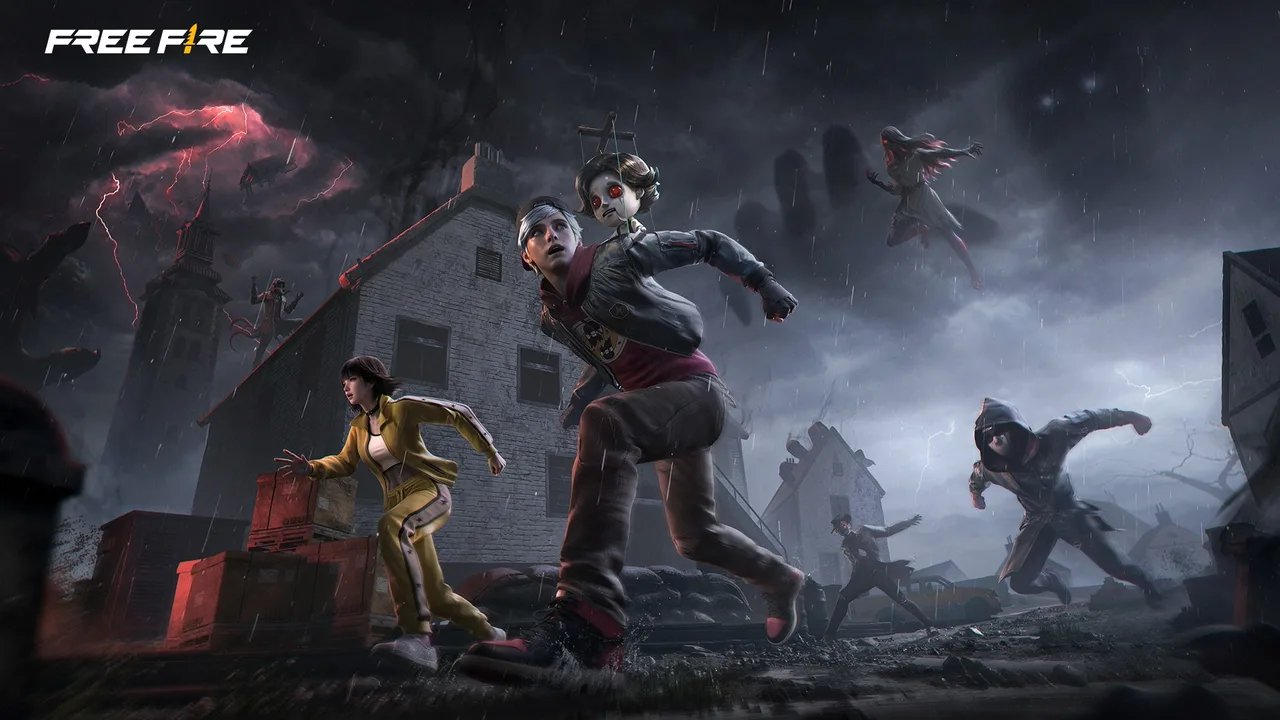
Free Fire is built for budget phones — that is the whole point of the game. But even a game designed for low-end hardware can stutter if your settings are wrong, especially on a 2GB or 3GB RAM phone. The fix is not a new phone. It is five minutes in the settings menu: the right graphics preset, a frame rate your phone can actually hold, and a sensitivity setup that matches your hardware. This guide gives you the exact settings, tested on real budget phones, for Free Fire and Free Fire MAX — including Free Fire India, which Garena launched as a separate app on October 28, 2026.
Quick summary
- Set Graphics to Smooth, turn Shadows and High Resolution off, and pick a frame rate your phone can hold steadily — a stable 30 FPS beats a stuttering 60.
- Start from Garena's DEFAULT sensitivity preset (100, 100, 100, 100, 71, 63) and only raise General and Red Dot in steps of 10.
- On 2GB RAM phones, use Smooth graphics with Normal frame rate; on 4GB, try Smooth with High or Ultra frame rate.
- Close background apps before playing, keep a few GB of storage free, and stop charging while you play — heat is the silent FPS killer.
- No sensitivity setting gives automatic headshots. Anyone selling "one-tap headshot" settings is lying to you.
Step 1: Fix your graphics settings first
Open Settings from the gear icon in the lobby, then go to the Graphics section. Do this before touching sensitivity — if your frame rate is unstable, no aim setting in the world will feel right.
| Setting | 2GB RAM | 3GB RAM | 4GB RAM |
|---|---|---|---|
| Graphics | Smooth | Smooth | Smooth or Standard |
| High FPS | Normal (30 FPS) | High (40 FPS) | High (40 FPS) or Ultra (60 FPS) |
| Resolution | Low | Medium | Medium to High |
| Shadows | Off | Off | Off |
| High Resolution | Off | Off | Off |
| Visual effects | Off | Low | Low |
Graphics: Smooth. This is the lightest preset. It removes shadows, simplifies textures and cuts visual effects. On a budget phone, this is non-negotiable — Standard and Ultra add load your chip cannot keep up with for a full match, and the visual difference is hard to notice in a fast fight.
High FPS: pick steady over high. A steady lower frame rate feels better than a high one that keeps dipping. On a weak phone, Normal (30 FPS) is the honest choice. If your phone stays cool on Normal for several matches, try the next step up. If it stutters in fights, step back down. Test in Training Ground and Clash Squad, where fights are constant.
Shadows: Off. Shadows add GPU work to every single frame and add heat. You lose nothing in gameplay by turning them off. Same for High Resolution and Collection Special Effects — turn them all off on a budget phone.
Step 2: Set your sensitivity the right way
Sensitivity is the second problem, not the first — fix your frame rate first, then touch this. Garena ships two presets, and the right starting point is the one the game itself gives you.
Start from Garena's DEFAULT preset: General 100, Red Dot 100, 2x Scope 100, 4x Scope 100, Sniper Scope 71, Free Look 63. These are the real in-game numbers, verified in the game itself. Set Aim Precision to Default.
The HIGH preset (185, 185, 185, 170, 150, 150) is a trap on a low-end phone. It exists for fast, responsive phones and fast hands. On a phone that stutters, HIGH makes your aim worse, because the view moves faster than the frames can show it.
Tune in small steps. Play at least two matches or 10 minutes in Training before changing anything. If your turns feel slow after the performance fixes, raise General and Red Dot by 10 at a time, testing between changes. Never raise every slider together, and never copy a pro player's 180+ sensitivity — their phone and their hands are not yours.
One real-world example: a Free Fire MAX player from Kerala with 137,043 Clash Squad eliminations plays on a 4GB POCO C3 with every scope sensitivity at 200 and Free Look at 100. That works for him after eight years on budget phones. It is a terrible starting point for you. Use DEFAULT, tune slowly, and let your own hands decide.
| Sensitivity | Starting point (DEFAULT) | If turns feel slow |
|---|---|---|
| General | 100 | Raise by 10, up to ~130 |
| Red Dot | 100 | Raise by 10 with General |
| 2x Scope | 100 | Leave it |
| 4x Scope | 100 | Leave it |
| Sniper Scope | 71 | Leave it |
| Free Look | 63 | Raise to ~85 if scanning feels slow |
Step 3: Controls and HUD
A few control settings make a real difference on a small screen:
- Aim Precision: Default. This is the standard setting and the one most guides agree on.
- Left Fire Button: Always On. Firing with your left thumb while aiming with your right is faster than reaching across the screen.
- Quick Weapon Switch: On. Swapping weapons mid-fight should take one tap, not two.
- Auto Scale: On. This keeps your HUD usable across different screen sizes.
- Custom HUD: Open the custom HUD editor and make your main fire button bigger — around 60-65% size works well on small screens — and move it where your thumb naturally rests. Save the layout once and stop fiddling with it.
Step 4: Stop your phone from sabotaging you
Most Free Fire lag on budget phones is not the game — it is the phone. Run through this checklist before your next session:
- Close everything before you launch. Swipe away every app from your recent apps list. On 2GB of RAM, one heavy background app can cost you the frames that make aim feel broken. Turn off Play Store auto-updates while you play.
- Keep storage free. Free Fire needs breathing room for updates and cache. Keep at least a few GB free on your phone.
- Do not charge while playing. Charging heats the phone, and a hot phone throttles its processor — that is the lag that appears 10 minutes into a match. Play on battery, and take the case off if the phone gets warm.
- Use 5GHz Wi-Fi or a stable mobile connection. Lag and low FPS feel the same in a fight, but they are different problems. If your ping spikes, switch to 5GHz Wi-Fi or move closer to the router. Our BGMI lag fix guide covers the same network tricks — DNS, router placement and game mode — and most of them apply to Free Fire too.
- Turn on your phone's Game Mode. Most Android phones have one (Game Turbo on Xiaomi, Game Space on OnePlus, Game Launcher on Samsung). It blocks notifications and prioritises the game.
What phone should you buy if yours cannot keep up?
If your phone is a 2GB device from 2021 or earlier, settings can only do so much. Free Fire's minimum is genuinely low, but a phone with 4GB RAM and a Helio G85-class chip or better will hold a steady 40-60 FPS on Smooth. If you are shopping, our guide to the best gaming phones under ₹20,000 in India lists seven phones that run BGMI and Free Fire smoothly — the realme P4 5G and POCO M7 Pro 5G are the best value picks. The same settings logic here also applies to other shooters — see our Fortnite low-end settings guide and the general how to increase FPS in any game guide for the PC side.
Frequently asked questions
What are the best Free Fire settings for a low-end phone?
Set Graphics to Smooth, High FPS to Normal (30 FPS) on 2GB RAM or High (40 FPS) on 3GB+, and turn Shadows and High Resolution off. Start sensitivity from Garena's DEFAULT preset and raise General and Red Dot in steps of 10 only if turns feel slow.
Can I play Free Fire well on a 2GB RAM phone?
Yes — Free Fire is designed for it. Use Smooth graphics, Normal frame rate, Low resolution and all effects off, close background apps before playing, and keep storage free. Expect a stable 25-30 FPS, which is playable, especially in Clash Squad.
What is the best sensitivity for Free Fire MAX on a low-end phone?
Start from Garena's DEFAULT preset: 100, 100, 100, 100, 71, 63 (General, Red Dot, 2x, 4x, Sniper, Free Look). Do not start from the HIGH preset on a phone that stutters — it makes aim worse.
Is there a sensitivity setting for automatic headshots?
No. No setting gives automatic headshots on any phone. Headshots come from crosshair placement, practice and a stable frame rate. Anyone selling "one-tap headshot" sensitivity settings is lying to you.
Should I play Free Fire India or Free Fire MAX?
Free Fire India launched on October 28, 2026 as a separate app from Free Fire MAX, built for Indian players. The settings in this guide apply to both — the menus and options are the same.
Related articles
 Minecraft Best Settings for Low-End PC: H…
 India's Online Gaming Law Explained: What…
 Best Games for 16GB RAM PC: The AAA Games…
 Best Gaming Phones Under ₹20,000 in India…
GamingNation — How to Fix Lag in Free Fire India (2026): Settings, Network, Phone Optimization
GamingNation — Free Fire MAX 4GB RAM Settings From a 137,043-Kill Player
GamingKhabar — Free Fire MAX Sensitivity for Low-End Phones: 2GB-4GB RAM
TalkEsport — Best Free Fire Settings for Low-End Devices (No Lag Gameplay)
GGTools — Best Free Fire Settings for Low-End Devices
Hero image: Garena.