Minecraft Best Settings for Low-End PC: How to Get Max FPS in 2026
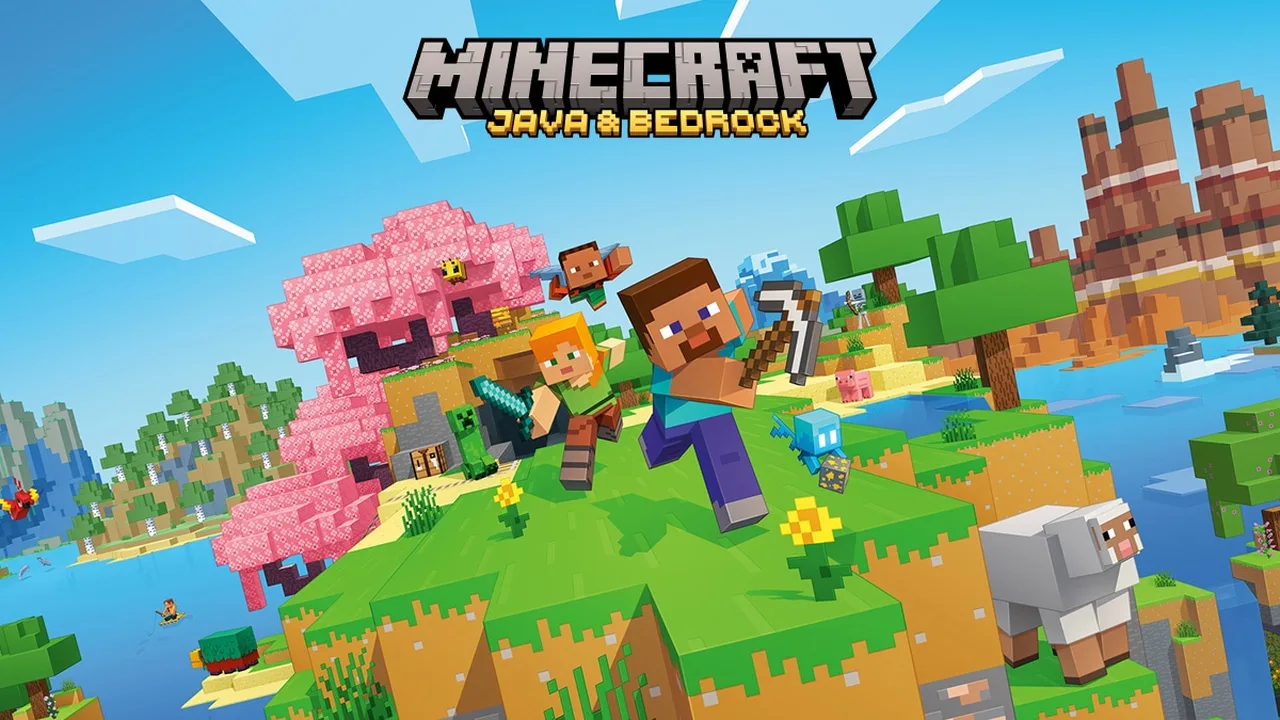
Minecraft looks simple, but it can lag on almost any PC — even a good one. The game renders an infinite blocky world one chunk at a time, and on a low-end PC the default settings will choke your frame rate. The good news: Minecraft is also one of the most fixable games there is. One free mod and five minutes in the settings menu can double or triple your FPS. This guide covers Java Edition 26.3 (the current version) and Bedrock, with the exact settings to change, in the order that matters.
Quick summary
- Install Sodium (with Lithium and FerriteCore) on Java Edition — it is the single biggest FPS boost available, worth +100-200%.
- Drop Render Distance to 6-8 chunks and Simulation Distance to 5-6. Render distance alone can double your FPS.
- Set Graphics to Fast, Particles to Minimal, Clouds off, Smooth Lighting off, and cap your frame rate at your monitor's refresh rate.
- Give Minecraft the right amount of RAM: 2-3GB on a 4GB machine, 4GB by default — more is not faster.
- OptiFine has no build for version 26.3, so fresh installs should pick Sodium. Do not install both — they do not work together.
Step 1: Install Sodium — the biggest FPS jump
If you do one thing from this guide, do this. Sodium is a free Fabric mod that rewrites Minecraft's rendering engine from the ground up, and it typically gives 100-200% more FPS than vanilla Minecraft, with no other change needed. It adds no new visual features — it is purely performance.
How to install it:
1. Download the Fabric installer from fabricmc.net and run it for your Minecraft version (26.3).
2. Download Sodium, Lithium and FerriteCore from Modrinth — make sure all three match your exact game version.
3. Put the three files in your `.minecraft/mods` folder.
4. Launch Minecraft using the Fabric profile.
What each mod does: Sodium handles rendering (the big win). Lithium optimises game logic — mob AI, physics and ticking — for another 5-15%. FerriteCore cuts RAM usage by 15-25%, which means less stuttering from garbage collection, especially on machines with 8GB of RAM or less. If you want shaders later, add Iris — it works with Sodium.
What about OptiFine? OptiFine is the old standard, but it has no build for version 26.3 — its newest downloads are previews for 26.2, dated October 20, 2026. If you already use OptiFine on an older version and you are happy, there is no urgent reason to switch. If you are installing fresh, Sodium wins on both FPS and version support. Never install Sodium and OptiFine together — they conflict.
Step 2: The video settings that matter, in order
Open Options, then Video Settings. These are ranked by how much frame rate they cost relative to how much you will notice them.
| Setting | Low-end PC | Why |
|---|---|---|
| Render Distance | 6-8 chunks | The biggest FPS cost in the game — 16 chunks to 8 can double FPS |
| Simulation Distance | 5-6 chunks | Fewer chunks ticking (mobs, crops, redstone) means less CPU load |
| Graphics | Fast | Fancy only adds leaf transparency and rain quality; Fast is 5-15% faster |
| Particles | Minimal | Explosions and farms drown weak PCs in particles |
| Clouds | Off | Free FPS for people who never look up |
| Smooth Lighting | Off | Small cost, big visual difference — turn it off on weak hardware |
| Biome Blend | Off | High values slow chunk building |
| Entity Distance | 50-75% | Fewer mobs and players rendered at distance |
| Chunk Builder | Threaded | The blocking modes trade FPS for fewer visual pop-ins |
| Max Framerate | Your monitor's refresh rate | Unlimited only heats your GPU for frames you cannot see |
| VSync | Off | VSync caps FPS and adds input lag |
Render Distance is the whole game. It decides how many 16x16-block chunks around you get rendered, and the cost grows with the square of the distance — 32 chunks is roughly sixteen times the work of 8. Start at 6, then raise it one step at a time until your frame rate dips. On a server, the server's own view distance caps it anyway, so setting it higher than the server allows does nothing.
Simulation Distance is separate since version 1.18. It controls how far away the world is actively simulated — mobs moving, redstone working, plants growing. You can see far (Render Distance 12) but simulate close (Simulation Distance 6), which saves CPU without shrinking what you see.
On Java 26.3 specifically: the video settings menu is now split into Display, Quality, Performance and Interface, and there is a new Graphics API setting with three choices — Default, Prefer Vulkan and Prefer OpenGL. If you have a modern GPU, try Prefer Vulkan; it can help on some hardware. The update also made Borderless Fullscreen the default, and you can switch to Exclusive Fullscreen without restarting.
Step 3: Give Minecraft the right amount of RAM
More RAM is not faster. Since version 26.1, Minecraft allocates 4GB by default, and that is plenty for vanilla play. On a computer with only 4GB of total RAM, give Minecraft 2-3GB and leave the rest for Windows — starving your operating system causes stuttering, not speed.
- 4GB total RAM: allocate 2-3GB (`-Xmx3G` in the launcher's JVM arguments).
- 8GB total RAM: 4GB is fine for vanilla; 6GB if you run a lot of mods.
- With Sodium + Lithium + FerriteCore: the default 4GB is usually enough.
To change it, open the Minecraft Launcher, go to Installations, edit your profile, turn on JVM Arguments, and change `-Xmx4G` to the amount you want.
Step 4: Windows and laptop fixes
These are free and take two minutes:
- Update your GPU driver. Outdated drivers are a classic cause of Minecraft stuttering. Get them from Nvidia, AMD or Intel directly, not from Windows Update.
- Use Java 21 or newer. Newer Java versions have a better garbage collector and faster compilation. Minecraft has officially supported Java 21 since version 1.20.5.
- Play in fullscreen (F11). Windowed mode costs frames on some systems.
- Close everything except Minecraft. On a weak PC, a browser with ten tabs open is competing with the game for RAM and CPU.
- On a laptop: plug in the charger, and make sure the game is using your dedicated GPU, not the integrated one. Both are silent FPS killers. Check in Windows Settings, then System, then Display, then Graphics, and set Minecraft to High Performance.
- On very weak machines: consider playing an older version like 1.12.2 or 1.8.9, which are much lighter than the latest ones — especially for PvP servers.
Step 5: Bedrock Edition settings
If you play Bedrock on PC, phone or console, the same logic applies with different menus:
- Set Graphics Mode to Simple, or to Vibrant Visuals with the Favor Performance preset if your GPU can handle it.
- Turn render distance down, fancy graphics off, cap FPS at 60, and lower the resolution scale on weak phones.
- On Bedrock PC, DLSS only works with ray tracing enabled on RTX cards — do not expect it to save a weak GPU.
For the wider picture on squeezing performance out of any game on Windows, see our general guides on how to increase FPS in any game and the best game settings for low-end PC. If you are wondering whether your hardware can run the newest games at all, our best games for 8GB RAM PC list is a good starting point — and Minecraft's latest update is covered in our look at Minecraft 26.4 Deep Freeze.
Frequently asked questions
What is the best way to increase FPS in Minecraft on a low-end PC?
Install Sodium with Lithium and FerriteCore — that alone can double or triple your FPS. Then drop Render Distance to 6-8 chunks and Simulation Distance to 5-6, set Graphics to Fast, and turn Clouds, Smooth Lighting and Particles down or off.
Is Sodium better than OptiFine in 2026?
For a fresh install, yes. Sodium gives larger FPS gains and has builds for the current version 26.3, while OptiFine has no 26.3 build yet. If you already use OptiFine on an older version and are happy, you do not need to switch. Never install both at once.
How much RAM should I give Minecraft?
4GB is the default since version 26.1 and is plenty for vanilla. On a 4GB machine, give it 2-3GB so Windows still has room. More RAM does not mean more FPS — too much can actually cause longer lag spikes.
Why does Minecraft lag even on a good PC?
Minecraft's vanilla renderer is inefficient, and the game is CPU-heavy in ways most games are not — it simulates a huge world of blocks, mobs and redstone every tick. That is why a rendering mod like Sodium helps more than a hardware upgrade.
Does lowering render distance really help that much?
Yes — it is the single most effective setting. Going from 16 chunks to 8 can double your frame rate, because the game renders only a quarter as much terrain. Start at 6 chunks and raise it one step at a time.
Related articles
 Free Fire Best Settings for Low-End Phone…
 India's Online Gaming Law Explained: What…
 Best Games for 16GB RAM PC: The AAA Games…
 Best Gaming Phones Under ₹20,000 in India…