Low-End PC Settings Cheat Sheet: Every Popular Game's Best Settings in One Place
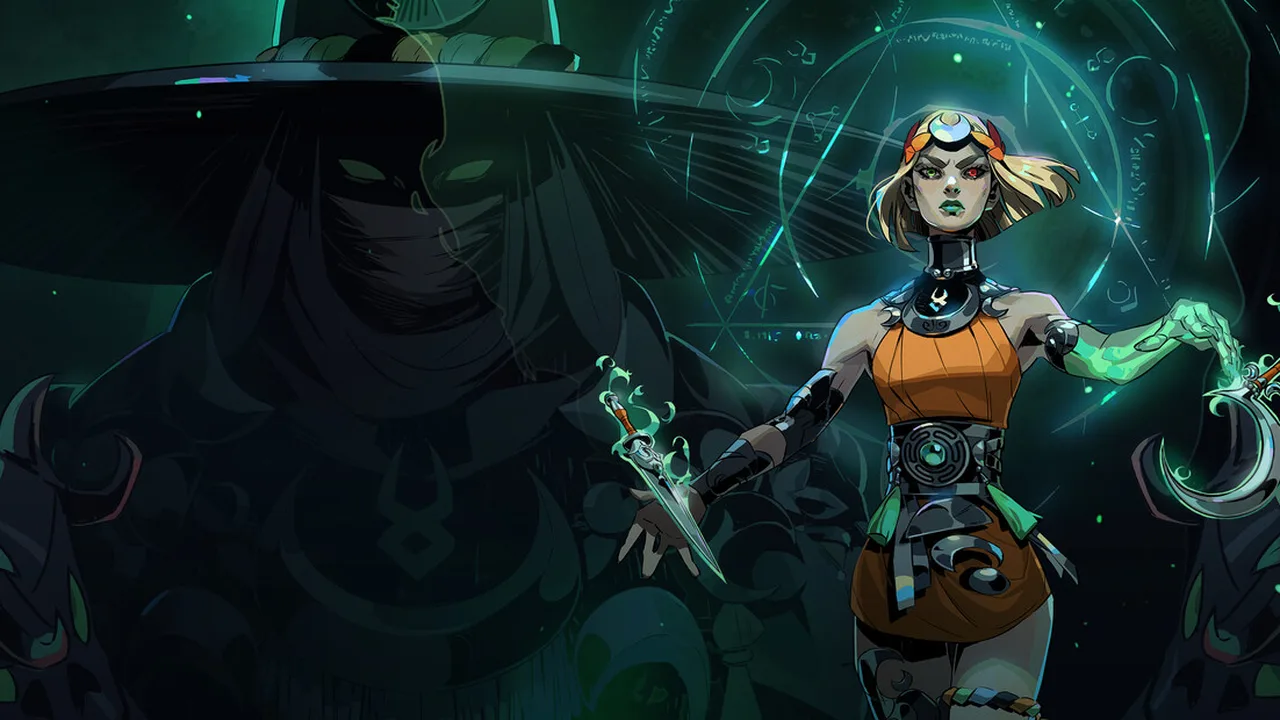
You don't need another tutorial telling you to update your drivers. You need to know, for the game you actually play, which one setting buys the most frames — and what your PC can honestly run. This cheat sheet is that page: the single biggest FPS lever from every per-game settings guide on GameDrop, in one table, plus the hardware-tier advice that decides whether a game will run at all. Hades II joins the table too — the lightest big game from our 8GB RAM guide, whose official minimum is just a GTX 950. Every setting below comes from the full per-game guide linked in the table. For the general Windows walkthrough (drivers, Game Mode, power plan, background apps), see our best game settings guide for low-end PC.
The rule behind the table: change one thing, then check your FPS. Note your frames before you start, change the single biggest lever for your game, and check again.
Quick summary
- Every game has ONE setting that matters most — for Fortnite it is Performance Mode, for Minecraft it is the Sodium mod, for GTA 5 it is turning MSAA off. The table names it for 16 PC games.
- Upscaling (DLSS, FSR or XeSS) is the biggest free FPS boost in modern games — use it before you lower your resolution. FSR works on almost any graphics card.
- 4GB of RAM is the real dividing line: Valorant, CS2, Dota 2, Minecraft and Fortnite (Performance Mode) run on 4GB. Battlefield 6, Marvel Rivals and ARC Raiders officially need 12–16GB.
- Stutter and low FPS are different problems — steady low FPS means your GPU is working too hard; hitches and freezes mean RAM, VRAM or shader compilation.
- Never pay for "FPS booster" apps and never use GFX tools in BGMI — the boosters do nothing Windows doesn't already do, and Krafton banned 2,400+ accounts for GFX tools in March 2026.
The master table: PC games
Find your game, change the setting in the third column first, and only then touch anything else. Minimum RAM is the official figure from each game's Steam page, checked in November 2026.
| Game | Min RAM (official) | Change this first | Upscaler | Worth knowing |
|---|---|---|---|---|
| Valorant | 4GB | Resolution — drop to 1280x720 on weak hardware; 720p is 56% fewer pixels than 1080p | None needed | Free; officially runs on Intel HD 4000 graphics |
| Fortnite | 8GB | Rendering Mode — switch to Performance (Lower Graphical Fidelity) | Performance Mode is the upscaler path | Minimum spec means 30 FPS at 720p — Performance Mode is what makes it playable |
| Minecraft (Java) | 4GB | Install Sodium (with Lithium and FerriteCore) — a free Fabric mod worth +100-200% FPS | Not applicable | Drop Render Distance to 6-8 chunks; 16 chunks to 8 can double FPS |
| CS2 | 8GB | Resolution first, then shadows, shaders and particles on Low | FSR if GPU-bound | Free; play in Fullscreen, not borderless windowed |
| Apex Legends | 6GB | Shadows — every shadow setting to Low or off; worth 15-40 FPS | FSR/DLSS on Quality | DX12-only since March 2025; V-Sync off, NVIDIA Reflex on |
| PUBG | 8GB | Post-Processing on Very Low — the biggest win; it also clears bloom that hides enemies | FSR/DLSS on Quality | 16GB of RAM largely fixes the stutter even though 8GB is the minimum |
| Dota 2 | 4GB | Effects Quality on Low — worth 30+ FPS in five-hero teamfights | Not needed at Low | Use +fps_max 0 in launch options — it removes the 120 FPS cap |
| GTA 5 | 4GB (Legacy) / 8GB (Enhanced) | Pick the right version first, then MSAA off — MSAA costs 30-40% of frames even at 2x | DLSS/FSR on Quality (Enhanced only) | Enhanced needs 8GB RAM and a GTX 1630; on a 2GB card or old quad-core, Legacy is the only version that runs well |
| Call of Duty: Black Ops 7 | 8GB | Texture Resolution on Low — it changes FPS by 15-25% on its own | DLSS/FSR on Quality, frame gen off | 161GB install on an SSD; ray tracing off, FOV 100-105 |
| Overwatch 2 | 6GB | Render Scale to 75%, then Shadow Detail and Effects Detail on Low | FSR/DLSS on Performance | Free; turn on Reduce Buffering and Reflex |
| ARC Raiders | 12GB | Ray-traced Global Illumination to Static (off) — worth 30-40% FPS from this one setting | DLSS, FSR 3 or XeSS on Balanced | Most RAM-hungry game here — on 8GB you are below minimum |
| Battlefield 6 | 16GB | Ray tracing off (+25% FPS), then SSGI off — it alone costs roughly 30-35% | DLSS/FSR/XeSS on Quality | Check TPM 2.0 and Secure Boot first — without them Javelin anti-cheat won't launch the game |
| Marvel Rivals | 16GB | Global Illumination to SSGI Low — never use Lumen, which can cost 30-60 FPS | DLSS/FSR/XeSS on Quality, frame gen off | Free, Unreal Engine 5; shadows on Low, not Off |
| Genshin Impact | 8GB | Render Resolution to 0.8 — about 30-40% less GPU work | FSR 2 anti-aliasing | Game caps at 60 FPS; Shadows Low and Volumetric Fog off are next |
| Delta Force | 8GB | Ray tracing off — one benchmark gained 30-50% FPS from that alone | DLSS/FSR/XeSS on Quality | Free; do not edit .ini files — the developers prohibit it |
| Hades II | 8GB | Resolution and effects on Low — start at 1080p, only drop if you stutter | FSR if needed | Officially needs just a GTX 950; ₹910 on Steam India |
Full step-by-step instructions for each game live in its own guide: Valorant, Fortnite, Minecraft, CS2, Apex Legends, PUBG, Dota 2, GTA 5, Black Ops 7, Overwatch 2, ARC Raiders, Battlefield 6, Marvel Rivals, Genshin Impact and Delta Force.
The mobile table: BGMI and Free Fire
Phone settings work differently — no driver to update, no upscaler to turn on. The levers are graphics quality, frame rate, shadows and heat.
| Game | Phone you need | Change this first | Worth knowing |
|---|---|---|---|
| BGMI | 4GB RAM for smooth play; 6GB+ for 90 FPS | Graphics on Smooth + Extreme (60 FPS), shadows off, auto-adjust graphics off | Never use GFX tools — Krafton banned 2,400+ accounts in March 2026. BGMI Air is the lighter alternative. |
| Free Fire | 4GB RAM + Helio G85-class chip | Graphics on Smooth, High FPS on, shadows off | Free Fire India launched 28 October 2026; use Garena's DEFAULT sensitivity preset unless your custom one works. |
Full guides: BGMI best settings for low-end phones, Free Fire best settings for low-end phones and how to fix lag in BGMI.
Find your hardware tier first
4GB of RAM, integrated graphics or a GT 1030-class card. Your games are Valorant, CS2, Dota 2, Minecraft (with Sodium), Fortnite in Performance Mode, and lighter free games. Play at 720p, close your browser completely before launching anything, and accept 30–60 FPS. Do not install Battlefield 6, Marvel Rivals or ARC Raiders — you are below their minimum specs. A RAM upgrade to 8GB is the cheapest upgrade that makes the biggest difference here.
8GB of RAM, GTX 1050 Ti / GTX 1650 / RX 570-class card. The classic Indian low-end gaming PC, and the tier most of this site is written for. You can play almost everything on this page at 1080p on Low with upscaling on Quality — except Battlefield 6, Marvel Rivals and ARC Raiders, where you are below minimum and should expect 30 FPS with stuttering on big maps. First moves are always the same: resolution or render scale down, shadows down, upscaling on. Keep textures on Medium or High if your card has 4GB of VRAM — textures live in video memory and cost almost no FPS if they fit.
16GB of RAM, GTX 1660 / RTX 2060-class card or better. You meet every minimum spec on this page. Turn on DLSS, FSR or XeSS on Quality, turn ray tracing and global illumination off (they cost 25–60 FPS and change nothing about how the game plays), and cap your FPS 3–5 below your monitor's refresh rate for the smoothest frame times.
On a laptop, always play plugged in. On battery, most laptops cut CPU and GPU speed hard, and no in-game setting can fix that. If your laptop has two graphics chips, tell Windows to use the dedicated one: Settings, System, Display, Graphics, find your game, Options, High performance. That 30-second fix is the classic "my gaming laptop gets 20 FPS" problem.
Is it low FPS or stutter? Diagnose before you change settings
Steady low FPS — the number is low but stable. Your GPU is drawing more pixels than it can handle. Turn on upscaling (Quality mode), drop render scale to 85% or resolution to 1600x900, then shadows to Low.
Hitches and freezes — the counter says 60, then drops to 5 for a second. Your problem is memory or loading, not raw GPU power. Close everything before you play (Chrome with ten tabs uses 1–3GB of RAM), drop texture quality to Medium, and install the game on an SSD — a hard drive causes exactly this kind of hitching in open-world games. If it happens in the first minutes of a match and then stops, it is shader compilation: let it finish before you judge the game.
FPS is fine in menus but collapses in fights. Drop Effects Quality and Particles first (Dota 2's Effects Quality on Low is worth 30+ FPS in teamfights), then shadows. Do not drop view distance in shooters — lowering it hides enemies, a bad trade for frames.
FPS drops after 20–30 minutes. That is heat. Clean the dust out of your PC's fans, keep the laptop's vents clear, and on a phone take the case off between matches. On BGMI, turn auto-adjust graphics off — it changes settings mid-match and causes stutter of its own.
The five settings that matter in every game
These five work in every game on the table. Our full best game settings guide covers them in detail.
Resolution or render scale is the biggest lever. 1080p to 720p cuts the pixels your GPU draws by 56%. Prefer render scale at 85% or upscaling at Quality mode over dropping resolution — both look far better.
Shadows are the most expensive effect that doesn't help you play. Turn them to Low first in every game. In competitive shooters, low shadows also make enemies easier to spot.
Upscaling is free performance. DLSS on NVIDIA, FSR on AMD, XeSS on Intel Arc — match it to your GPU, use Quality mode, and only drop to Balanced or Performance if Quality still misses your target. FSR works on almost any graphics card.
Turn V-Sync off, and motion blur and depth of field off always. They cost frames and make the image blurrier. Cap your FPS instead — 3–5 FPS below your monitor's refresh rate is the smooth spot.
Always use Fullscreen, not borderless windowed. True fullscreen skips the Windows compositor, which costs frames and adds input lag.
What not to do
Don't pay for "FPS booster" or "game booster" apps. They do nothing Windows doesn't already do — Game Mode, the High Performance power plan and closing background apps cover it — and some install junk or break things. Same for random registry tweaks from YouTube videos.
Don't use GFX tools in BGMI or Free Fire. They modify game files, Krafton bans accounts for them, and the in-game Smooth + Extreme settings do the same job safely.
Don't edit .ini or config files to force locked settings. Delta Force explicitly prohibits .ini edits and hands out penalties. If a setting isn't in the menu, the developers locked it for a reason.
Don't chase the highest FPS number. A stable 60 FPS with consistent frame times feels better than 90 FPS that stutters to 40 in every fight. Fix the stutter first, then push the number up.
Frequently asked questions
Which game runs best on a 4GB RAM PC?
Valorant — it officially needs 4GB of RAM and an Intel HD 4000, and it is free. CS2, Dota 2 and Minecraft (with Sodium) also run well on 4GB, and Fortnite works in Performance Mode. Avoid Battlefield 6, Marvel Rivals and ARC Raiders at 4GB — you are below their minimum specs.
What is the single biggest FPS boost on a low-end PC?
It depends on the game, which is why the table exists. For most modern games it is upscaling (DLSS, FSR or XeSS) on Quality mode — typically 30–60% more FPS. For Fortnite it is Performance Mode, for Minecraft the Sodium mod, for GTA 5 turning MSAA off. In every game, dropping resolution is the biggest raw lever, but upscaling gives you the frames without the blur.
Should I use DLSS, FSR or XeSS?
Match the upscaler to your graphics card: DLSS on NVIDIA RTX, FSR on AMD, XeSS on Intel Arc. FSR is the flexible one — it works on almost any GPU, so use it if your game doesn't offer your card's native upscaler. Start on Quality mode and only drop to Balanced or Performance if you still miss your FPS target.
Why does my game stutter even when the FPS counter says 60?
The counter shows the average, not the worst moments. Stuttering is usually RAM, VRAM or storage: close your browser and background apps, drop texture quality to Medium, and install the game on an SSD. If it happens in the first minutes of a match and then stops, it is shader compilation — let the game finish building shaders.
Do FPS booster apps actually work?
No. They close background processes and change Windows settings you can change yourself for free in two minutes — Game Mode on, High Performance power plan, close your browser. Some install junk, and the registry tweaks they apply can break things. The settings in this guide are the real version of what those apps promise.
Related articles
 What GTA 6 Really Costs in India: The Ful…
 Delta Force Best Settings for Low-End PC:…
 Best Games Like Minecraft for Low-End PC:…
 Best Cyberpunk Games for Low-End PC: 10 N…
GameDrop — Valorant Best Settings for Low-End PC
GameDrop — Fortnite Best Settings for Low-End PC
GameDrop — Minecraft Best Settings for Low-End PC
GameDrop — CS2 Best Settings for Low-End PC
GameDrop — Apex Legends Best Settings for Low-End PC
GameDrop — PUBG Best Settings for Low-End PC
GameDrop — Dota 2 Best Settings for Low-End PC
GameDrop — GTA 5 Best Settings for Low-End PC
GameDrop — Black Ops 7 Best Settings for Low-End PC
GameDrop — Overwatch 2 Best Settings for Low-End PC
GameDrop — ARC Raiders Best Settings for Low-End PC
GameDrop — Battlefield 6 Best Settings for Low-End PC
GameDrop — Marvel Rivals Best Settings for Low-End PC
GameDrop — Genshin Impact Best Settings for Low-End PC
GameDrop — Delta Force Best Settings for Low-End PC
GameDrop — Best Game Settings for Low-End PC
GameDrop — How to Increase FPS in Any Game
Steam
Hero image: Supergiant Games.